Notifications & Alerts
Configure Slack notifications, email preferences, stale flag alerts, and weekly digests to stay informed about your feature flags.
FlagShark keeps your team informed about feature flag activity through multiple notification channels. Configure alerts for stale flags, PR activity, and weekly summaries to stay on top of your flag hygiene.
Notification Channels
FlagShark supports two notification channels:
| Channel | Scope | Availability |
|---|---|---|
| Per-user preferences | All plans | |
| Slack | Workspace-wide settings | Team plan and above |
Email Notifications
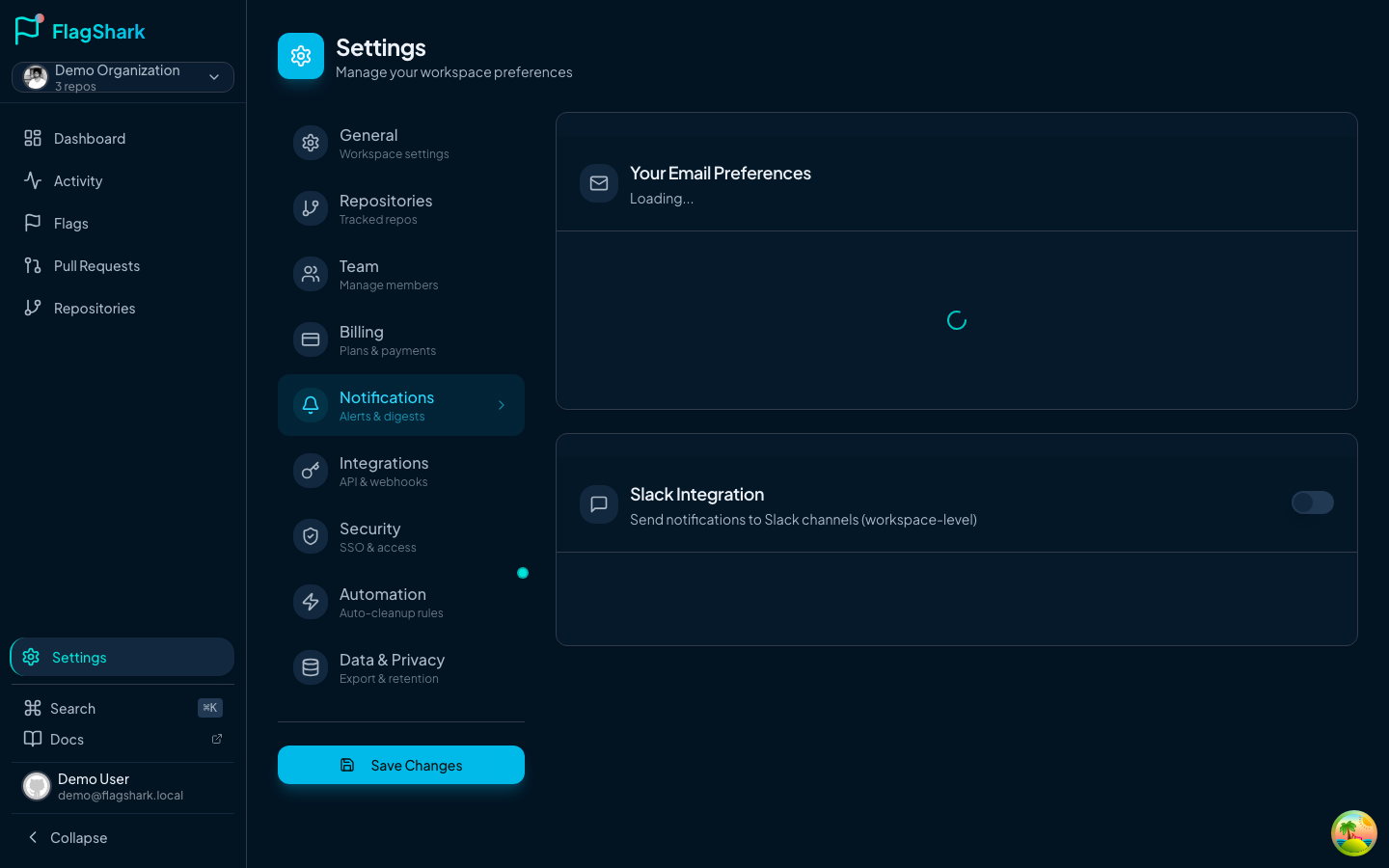
Each user can configure their own email preferences in Settings → Notifications:
Available Email Notifications
| Notification | Description | Default |
|---|---|---|
| Stale Alerts | Get notified when flags become stale (90+ days) | On |
| Weekly Digest | Receive a weekly summary of flag activity | On |
| PR Notifications | Get notified when FlagShark detects flags in PRs | On |
Unsubscribing
Each email includes an unsubscribe link. You can also:
- Toggle individual notification types in Settings
- Use the Master Unsubscribe toggle to disable all emails
Weekly Digest
Every week, FlagShark sends a summary email with:
| Section | Content |
|---|---|
| Activity Summary | Flags added and removed this week |
| Current State | Active flags and stale flag counts |
| Top Repositories | Top 5 repos by flag activity |
| Quick Links | Direct links to your dashboard |
The digest is sent every Monday morning (based on your timezone when available).
Stale Flag Alerts
FlagShark automatically monitors for stale flags and sends alerts when flags exceed your configured threshold.
How Stale Detection Works
- A scheduled job runs daily checking all active flags
- Flags older than the threshold (default: 90 days) are marked stale
- Alerts are sent via your configured channels
- Flags in the "permanent flags" list are excluded
Configuring Stale Alerts
In Settings → Automation:
| Setting | Description | Default |
|---|---|---|
| Stale Threshold | Days until a flag is considered stale | 90 |
| Permanent Flags | Flag names that should never alert | Empty |
enable-maintenance-mode or feature-analytics to your permanent flags list if they're meant to stay long-term.
Slack Integration
Connect Slack to receive real-time notifications in your team channels.
Setting Up Slack
#flagshark or #engineering)Creating a Slack Webhook
- Go to Slack API and create a new app
- Enable Incoming Webhooks
- Click Add New Webhook to Workspace
- Select the channel for notifications
- Copy the webhook URL
Slack Notification Types
| Notification | Description | Color |
|---|---|---|
| Flag Detection | When flags are detected in PRs | Blue (additions), Green (removals) |
| Stale Flag Alert | When flags exceed the stale threshold | Orange |
| Removal PR Created | When auto-cleanup creates a removal PR | Green |
Slack Message Format
Slack notifications use rich formatting with:
- Header with notification type
- Repository and PR details
- List of affected flags
- Direct links to FlagShark dashboard
- Timestamp
Example stale flag alert:
⚠️ Stale Flags Detected

Repository: acme/web-app
Flags requiring attention:
• enable-new-checkout (94 days old)
• feature-dark-mode (102 days old)

View in FlagShark →
Slack Settings
| Setting | Description | Default |
|---|---|---|
| Enabled | Master toggle for Slack notifications | Off |
| Webhook URL | Your Slack incoming webhook URL | Required |
| Channel | Target Slack channel | #flagshark |
| Stale Flag Alerts | Send alerts for stale flags | On |
| PR Comments | Send notifications for PR activity | On |
Notification Triggers
Here's when each notification is sent:
| Event | Slack | Timing | |
|---|---|---|---|
| Flag detected in PR | Yes* | Yes* | Real-time |
| Flag removed in PR | Yes* | Yes* | Real-time |
| Flag becomes stale | Yes* | Yes* | Daily scan |
| Removal PR created | Yes* | Yes | Real-time |
| Weekly activity | Yes* | No | Weekly |
| Payment failed | Yes | No | Real-time |
| Team invitation | Yes | No | Real-time |
*If enabled in user/workspace preferences
Managing Notification Volume
Reducing Noise
If you're getting too many notifications:
- Adjust stale threshold — Increase from 90 to 120 days
- Add permanent flags — Exclude intentionally long-lived flags
- Disable PR notifications — Keep only stale alerts and digests
- Use Slack channels — Route to dedicated channels team members can mute
Ensuring Coverage
If you're missing important notifications:
- Check spam folders — Add
[email protected]to your contacts - Verify email preferences — Ensure notifications aren't disabled
- Review Slack webhook — Webhooks can expire if the Slack app is uninstalled
Dashboard Indicators
Even without notifications, the dashboard shows alert states:
Stale Alert Card
The dashboard includes a prominent stale alert card:
| State | Display |
|---|---|
| Stale flags exist | Pulsing warning icon, flag count, "Review Stale Flags" button |
| No stale flags | Green checkmark, "All Clear!" message |
Attention Section
The dashboard's Attention section surfaces:
- List of stale flags with ages
- Debt-heavy repositories
- Quick action buttons
Best Practices
For Individual Contributors
- Enable PR Notifications to see when your flags are detected
- Enable Weekly Digest to track your contributions
- Disable Stale Alerts if you're not responsible for cleanup
For Team Leads
- Set up Slack integration for team visibility
- Enable Stale Alerts to catch flags before they become problems
- Review the Weekly Digest in team standups
For Organizations
- Use a dedicated #flagshark Slack channel
- Assign flag cleanup as part of sprint planning
- Set organization-wide policies for stale thresholds
Troubleshooting
Not receiving emails
- Check your spam/junk folder
- Verify email preferences in Settings
- Ensure you haven't used the master unsubscribe
- Contact support if issues persist
Slack notifications not working
- Verify the webhook URL is correct
- Check the Slack channel still exists
- Ensure the Slack app hasn't been uninstalled
- Test with a simple curl command:
curl -X POST -H 'Content-type: application/json' \
  --data '{"text":"Test from FlagShark"}' \
  YOUR_WEBHOOK_URL
Duplicate notifications
- Check if multiple users have the same email
- Verify you're not subscribed to both email and Slack
- Contact support to investigate